
Endoscope Camera
DTFHMLibraries & Demo
3.411.00 Reviews
- Version
- 8.0.0
- Installs
- 100.00K
- Age Rating
- Everyone
Screenshots
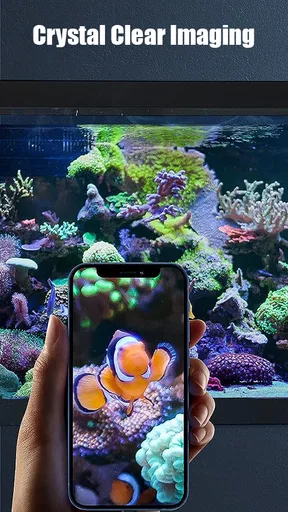
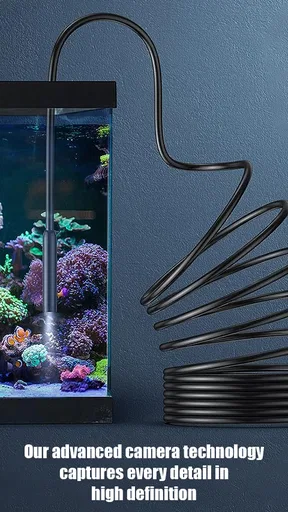
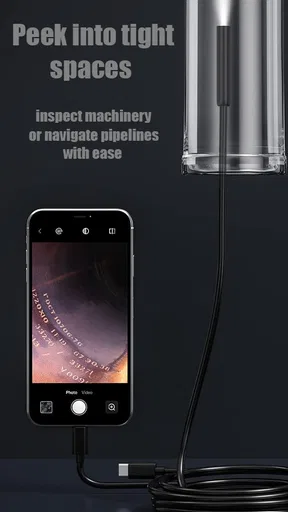
Our Review of Endoscope Camera
 Analysis by Appyee
I spent time with Endoscope Camera as a practical companion for an Android endoscope, rather than treating it like a general camera replacement. Its purpose is narrow but useful: it helps connect a compatible endoscope camera to an Android phone so you can see spaces that are difficult to inspect directly. That makes it relevant for checking behind furniture, looking into narrow gaps, examining a drain opening, or investigating a small mechanical area without immediately taking something apart.
My overall impression is that the app is most valuable when the hardware is already in your hands and you need a simple viewing interface. It is free, aimed at everyone, and belongs to the Libraries & Demo section. The developer is DTFHM, and the app has reached over one hundred thousand installs, which suggests that many people are looking for this particular kind of connection tool. Still, its modest average of 3.4 from roughly three hundred fifty ratings tells me to approach it as a functional utility with possible compatibility friction, not as a polished inspection system.
How the app feels to use in real situations
I find the app most useful when I treat the endoscope as a way to answer one small, practical question rather than inspect an entire space at once. In this section, I’ll focus on how the phone-and-probe setup fits into everyday tasks, including the little preparation choices that can make a short inspection less awkward. That naturally leads to deciding which situations suit this approach best.
Readability and navigation during setup
The first thing I noticed is that this is not an app you open for entertainment or casual browsing. Its value appears when the endoscope is connected and you need to get an image on screen quickly. That focused purpose is helpful because there are fewer distractions than in a full camera suite. I can imagine a user opening it beside a toolbox, connecting the camera, and concentrating on the live view instead of searching through a long list of creative controls.
That simplicity can also make the experience feel less forgiving. With a specialized accessory, the important question is not only whether the app opens, but whether the phone recognizes the particular camera and presents a usable picture. A person who is comfortable with Android accessories will probably know to check the physical connection, keep the camera steady, and retry the connection if the view does not appear immediately. Someone less familiar with USB devices may find the first attempt confusing because the challenge is shared between the app, the phone, and the endoscope itself.
For readability, a live camera image is naturally easier to understand than a technical diagnostic screen. I would use the phone at a comfortable brightness, especially when the endoscope is being pushed into a dark space and the surrounding room is already poorly lit. Larger system text can help with menus, but it cannot enlarge the physical scene itself. If the detail is tiny, moving the phone closer to your face may be less useful than repositioning the probe carefully and keeping the image stable.
The most accessible workflow is to prepare the phone before reaching into the inspection area. I would unlock the device, open the app, connect the accessory, and confirm the picture while both hands are still free. This small habit matters for people with limited reach, reduced balance, or difficulty holding a phone and manipulating a cable at the same time. It also reduces the chance of twisting the probe while trying to solve a connection problem in an awkward position.
Motor and sensory considerations when inspecting
Endoscope work is more physical than the app description might suggest. The screen may be simple, but the user still has to guide a flexible camera, hold or position the phone, and interpret a moving image. People with reduced hand strength may find long inspections tiring, especially if the cable naturally bends away from the intended direction. I would place the phone on a stable surface or use a stand whenever possible, leaving one hand for the probe and one for small adjustments.
For users with tremors or limited fine motor control, slow movements are essential. Fast turns can make the image difficult to interpret even when the camera is working correctly. A useful technique is to make one small adjustment, pause, and then inspect the screen before moving again. This turns the task into a sequence of short decisions rather than one continuous movement. It is also easier to ask another person to guide the probe while the user watches the display and describes what to look for.
Vision needs vary widely in this type of task. A bright, high-contrast phone display can make the live image easier to follow, but glare from a window or overhead light can wash out dark details. I would angle the phone away from direct reflections and avoid judging the camera in a brightly lit room before assuming the image is poor. The actual inspection area may have very different lighting from the phone screen, so keeping the display clear is part of the process.
Users with hearing loss are unlikely to need spoken interaction for the core visual task, since the important information is on the screen. That is a practical advantage for a quiet inspection workflow. On the other hand, anyone who relies heavily on audio prompts should not assume that the app will guide every step verbally. I would plan the session around visible feedback and, if necessary, have another person nearby to help with the physical setup rather than depending on sound.
Situational access: where it helps and where it does not
A realistic example is finding a dropped object behind a cabinet. Instead of repeatedly reaching into a narrow gap, I would connect the endoscope, place the phone where the screen is visible, and guide the camera slowly along the floor. The app can make the search less physically demanding because the user can inspect the space from a distance. The same approach may help when checking whether a cable has slipped behind a desk or whether an obstruction is visible inside a hard-to-reach opening.
Another useful situation is a basic home inspection before deciding what to do next. You might look beneath an appliance, examine a vent opening, or check a visible section of pipe. The important benefit is not that the app diagnoses a fault; it gives you another view. I would use that view to decide whether an area needs cleaning, whether an object is present, or whether professional help is sensible. I would not treat a blurry or incomplete image as proof that a space is safe.
The app can also be helpful for people who cannot comfortably bend, kneel, or reach into confined spaces. Holding the phone farther away while guiding the camera may reduce the need to put your head or shoulders into an awkward position. However, the endoscope cable still has to reach the target, and the user must control it. This means the app improves visual access more reliably than physical access. A person with significant mobility limitations may still need a helper to position the probe.
For older Android phones or devices running the minimum supported Android version of 7.0, the experience may depend heavily on the phone’s hardware and its connection behavior. The app’s current version is 8.0.0, but a newer app version does not automatically make every endoscope compatible. I would test the complete setup at a table before taking it outdoors, under a vehicle, or into a cramped utility area. That simple test can reveal whether the phone recognizes the camera while there is still time to change plans.
What the app does well for an inclusive workflow
The strongest quality here is its narrow purpose. People who find complex camera apps overwhelming may appreciate having an application dedicated to viewing an endoscope feed. There is less need to learn photography terminology or sort through editing tools. For a user who only wants to inspect a hidden area, that reduction in choices can make the task easier to explain and repeat.
It is also free to use, which lowers the barrier for someone who already owns an endoscope but does not want another paid utility. That matters in shared households, community workshops, and occasional repair situations where the app may be opened only a few times. The Everyone content rating makes it suitable for a broad audience, although younger users should still be supervised around cables, tools, drains, machinery, or any location where the camera is being inserted.
One less obvious advantage is that the phone can serve as a familiar viewing surface. Many people already know how to adjust brightness, rotate a device, or zoom their attention by changing distance. Even without specialized accessibility equipment, that familiarity can make the inspection less intimidating. I would still avoid promising that every phone setting will improve the live image, but basic display adjustments can make a meaningful difference for individual preferences.
A second practical insight is to separate the viewing task from the searching task. If one person handles the probe and another watches the screen, the app becomes easier to use for someone who has limited dexterity, low vision, or difficulty maintaining an awkward posture. The viewer can give short directions such as left, right, forward, or stop, while the other person handles the physical movement. This is not a built-in feature; it is a workflow that makes the app more usable in real homes.
Remaining barriers and trade-offs
The biggest limitation is that the app cannot solve an incompatible accessory. Endoscope cameras vary in connectors, operating behavior, and phone support. If the image does not appear, a user may not know whether the cause is the app, the cable, the phone, or the camera. That uncertainty is particularly frustrating for people who need clear, step-by-step guidance and cannot easily experiment with several devices.
I would also be cautious about relying on it for safety-critical work. A small screen image can miss depth, movement, heat, electrical danger, or damage outside the camera’s angle. The app is suitable for looking, not for replacing a qualified inspection. If the area involves live electricity, unstable structures, hot surfaces, chemicals, or moving machinery, the safest choice may be to stop and use a professional service instead of trying to improve the view with a phone.
There is a physical trade-off between cable control and screen visibility. Holding the phone close makes details easier to see but leaves fewer hands available for the probe. Placing the phone on a table frees the hands but may force the user to turn repeatedly or work at an uncomfortable angle. I found that a stable support and a planned route through the inspection area are more useful than simply increasing screen brightness.
People who need strong text-to-speech support, extensive visual descriptions, or highly configurable controls should think carefully before choosing this app. A live camera feed is inherently visual, and accessibility settings can improve the phone experience without describing what the lens sees. For those users, another solution involving a helper, a more advanced inspection camera, or equipment designed around their specific needs may be better.
How it compares with ordinary camera apps and dedicated viewers
A regular camera app is the obvious alternative, but it generally expects the phone’s built-in lens to be used. That makes it poor for looking around corners or into narrow spaces unless the external camera is already supported by the operating system and the app. Endoscope Camera is more appropriate when the task begins with a separate inspection camera rather than with ordinary photography.
Dedicated hardware viewers can offer a more controlled experience, especially for frequent repair work. A purpose-built monitor may be easier to hold beside a probe and may avoid phone compatibility questions. The trade-off is cost and another device to store. For occasional household use, a free Android app can be the more sensible first attempt, provided the endoscope and phone work together.
More advanced inspection applications may provide recording, image controls, measurement tools, or clearer troubleshooting. Those extras can matter to technicians who document work or compare images over time. They can also make the interface busier and less approachable. I would choose this app when the priority is getting a basic view with minimal learning, and choose a more specialized option when inspection records, precision, or repeatable professional results are central.
Who should install it, and who should skip it
I would recommend trying it if you already own a compatible Android endoscope and mainly need a straightforward way to see the camera feed. It is a reasonable fit for occasional home maintenance, finding objects in narrow spaces, basic hobby projects, and situations where reducing bending or reaching is helpful. The free price makes experimentation relatively easy, as long as you test the setup before relying on it.
I would skip it as a first choice if you need a complete diagnostic toolkit, dependable documentation, measurements, or professional inspection controls. I would also look elsewhere if your main device is an iPhone, since this review concerns its Android use and the app’s minimum requirement is Android 7.0. People who cannot comfortably manage both a phone and a probe should plan for assistance rather than assuming the app alone will remove the physical challenge.
My final view on accessibility and everyday usefulness
After using Endoscope Camera as a focused utility, I see it as a practical bridge between an Android phone and an endoscope camera, not as a fully guided accessibility product. Its greatest strength is the simple idea behind it: turn a familiar phone screen into a way to inspect places that are otherwise hard to see. That can support users who need to avoid bending, reaching, or placing their head near a confined area.
Its limits are just as important. Compatibility can be unclear, the physical probe still demands coordination, and the live image cannot replace professional judgment. The app may be easier for some people because it avoids unnecessary camera features, while others will need stronger guidance, better controls, or help from another person.
With a 3.4 average from around three hundred fifty ratings, I would describe the experience as useful but not universally smooth. My advice is to connect the endoscope in a safe, comfortable place, secure the phone, adjust the viewing position before starting, and treat the image as information rather than a diagnosis. For that specific purpose, Endoscope Camera is worth trying, especially when a free and focused Android solution is preferable to buying a separate viewer.
In short, it earns a place in the toolbox of curious homeowners and occasional repair users who value visual access more than advanced controls. It is less convincing for demanding technical work or for anyone who needs accessibility support beyond a readable phone display and a simple camera view. If your expectations match that narrower role, the app can make an awkward inspection noticeably easier.
Verdict
Strengths of Endoscope Camera
- Works with many USB and Wi‑Fi endoscope camera models.
- Adjustable LED brightness helps illuminate dark, narrow spaces.
- Useful for checking pipes, engines, drains, and hard-to-reach areas.
- Photo and video capture make it easy to document inspections.
- Simple interface is suitable for occasional users without technical skills.
Limitations of Endoscope Camera
- Compatibility may vary depending on the phone, connector, and camera model.
- Some features require USB OTG support or additional adapters.
- Image quality depends heavily on the connected endoscope hardware.
- Wi‑Fi models can experience lag or connection drops during inspections.
- The app may contain ads or request storage and camera permissions.
Other Releases by DTFHM
View All
Ps Controller for PS4 PS5
Libraries & Demo4.5

Samsung Galaxy SmartTag
Libraries & Demo3.4
Similar Picks in This Category
View All
PGT: GFX, Launcher & Optimizer
Trilokia Inc.4.5

AusweisApp Bund
Governikus Service GmbH3.7

Cardboard
Google LLC3.2

Gamers GLTool with Game Tuner
Trilokia Inc.4.5

Multi Web Chat - Read Secretly
World Scan & Cleaner3.8

App Cloner Premium & Add-ons
App Listo1.9
Frequently Asked Questions
What is Endoscope Camera and what can it be used for?
Endoscope Camera is an app designed to work with compatible inspection cameras, usually connected through USB or Wi-Fi. After pairing the camera, you can view a live feed on your phone and use it to inspect narrow or difficult-to-reach areas, such as pipes, drains, engines, walls, and small mechanical parts. Its usefulness depends heavily on the camera hardware and connection method.
Does Endoscope Camera work with every Android or iPhone device?
No. Compatibility depends on your phone, operating system, connector, and the endoscope camera itself. Android devices generally need USB OTG support when using a wired camera, while iPhones may require a compatible Wi-Fi endoscope or approved adapter. Before downloading, check whether the app supports your device model, camera type, and operating-system version to avoid connection problems.
How do I connect an endoscope camera to the app?
For a wired model, connect the camera using the appropriate USB or Lightning adapter, enable USB OTG if your Android device requires it, and grant the requested camera or storage permissions. For a wireless model, turn on the camera’s Wi-Fi, connect your phone to its network, then open Endoscope Camera. The exact steps can vary between manufacturers.
Can Endoscope Camera take photos and record videos?
Most versions of Endoscope Camera provide basic controls for capturing still images and recording inspection videos, although the available options may differ according to the connected camera and app version. Files are typically saved to the device’s gallery or an in-app folder. Image quality is determined mainly by the camera sensor, lighting, cable stability, and lens position.
Is Endoscope Camera free and does it require internet access?
The app may be available as a free download, but some versions can include advertisements, optional purchases, or features that depend on the camera manufacturer. An internet connection is usually not required to view a live feed from a directly connected camera. However, wireless models may create their own local network, and internet access can be needed for updates or sharing files.
